With BarOrder
- Tickets print automatically when an order is placed
- One tablet or phone connects all printers
- Kitchen, bar or counter receive separate tickets
- Failed jobs can be reprinted
- Cash drawer opens automatically on cash payments
Printing
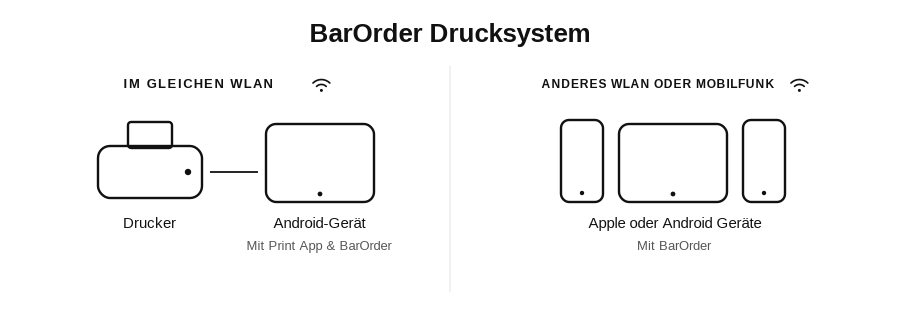
The app routes print jobs automatically to the right receipt printers. One Android 8+ device on the same WLAN is enough.
Product view
The link between BarOrder and the receipt printers in the venue.

In detail
Print jobs are sent to the assigned printers and printed from there. Optionally, a connected cash drawer opens on cash payments.
Comparison
Core features
The app stays active in the background and takes care of everything that needs to go on paper.
All items, or only assigned items, are printed.
Automatic or manual receipt printing for guests.
Optional pickup ticket printing for guests.
Connect several printers at once and print to the right one.
Opens automatically on cash payments.
Note a change on an order and print the order ticket again.
How it works
Connect the receipt printer to the venue WLAN.
In BarOrder, add the printer with name, location, IP address and paper width.
Create a token for the Print App and sign in to the app.
All printers and cash drawers load automatically with status.
Run a test print
Reliable printing even when it gets busy.
Food goes to the kitchen, drinks to the bar. Duplicate slips and follow-up questions go away.
Jobs are processed in a queue and are not lost during short dropouts.
The Print App can run on several Android devices. If one device fails, the second takes over.
Related
All ESC/POS compatible network printers with 80 mm or 58 mm paper width. Connection is always via the printer IP address, which is printed when you turn the printer on. Brands such as Epson or Star can be used directly.
An Android 8+ device on the same WLAN as the printers. Because the app runs in the background, the device can still be used for service. Several devices can keep the app open. Older phones or tablets are enough. What matters is that battery saver is off and the device stays plugged in.
Each venue gets a private token, which can be renewed if needed. Use it to sign in to the app. To distribute print jobs, the device with the app must be on the same WLAN as the printers.
Most receipt printers print a status slip with the IP address when you turn them on. If not, hold the paper button while powering on. A fixed IP via router reservation prevents later dropouts.
The job appears in the print job overview with status and error message. Use the reprint button to send it back to the queue. The app then picks it up automatically once the printer is reachable.
Yes. All printers set up in BarOrder are served at the same time. Item assignment decides which ticket comes out at which station.
Yes. If a drawer is connected to the printer and enabled in settings, it opens automatically on cash payments.
Printers and the Android device must be on the same network. Battery saver should be off on the Android device. Secure Printing should be disabled on the printer.
Start a professional hospitality day with BarOrder now.